
Step-by-step instructions
01
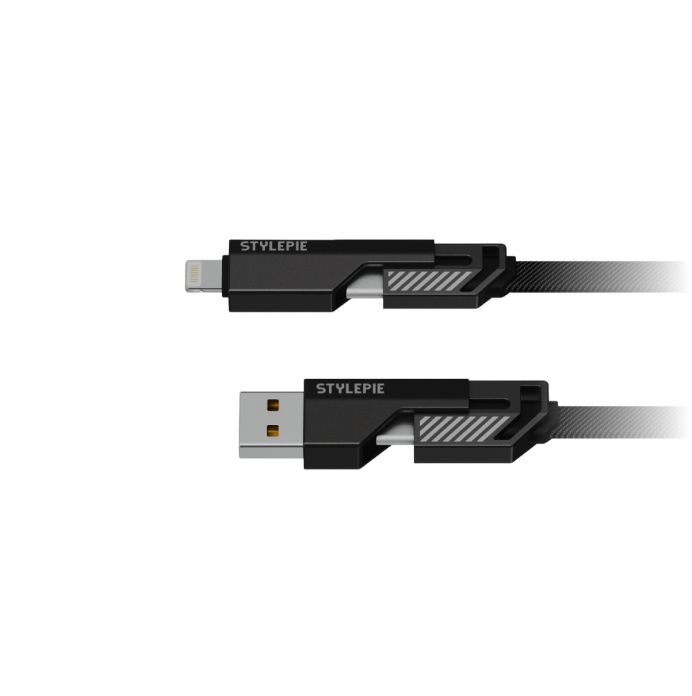
Disconnect both ends
Unplug the cable fully from both the power source and the device. The display should go dark within a moment.
02
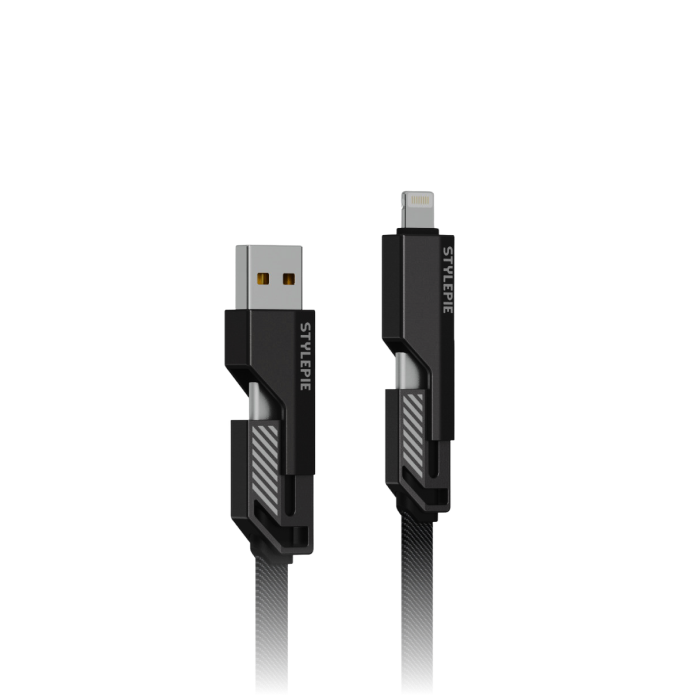
Wait ten seconds
This lets the display module's chip fully power down rather than staying in a low-power standby state.
03
Reconnect the host end only
Plug the display end back into a wall adapter, without connecting the device end yet. You should see the display briefly flash once.
04
Reconnect the device end
Plug the other end into your phone or laptop. The display should now show a live wattage reading instead of the stuck pattern.
05
Reconnect the device end
Let it charge for a minute and check that the number updates normally rather than freezing again. If it does, see Notes below before contacting support.
Do not unplug during an update
If power is lost mid-update, the display will stay dark on reconnect. This is recoverable — see "Display won't light up after a firmware update" in Troubleshooting.


