
Content
Getting started
Everything you need to set up and troubleshoot your Liter cable.
Getting started with the iRemex USB liter cable is a breeze! This versatile cable not only facilitates rapid data transfer but also supports power delivery and display functions, all through a single connection. Whether you're transferring large files or connecting multiple devices, the iRemex cable ensures a seamless and efficient experience. Simply plug it in, and you’re ready to take advantage of its impressive capabilities.To maximize your experience with the iRemex USB liter cable, ensure that your devices are compatible with its multifunctional features.
This cable is designed to handle high-speed data transfers, making it ideal for everything from backing up important documents to streaming high-definition content. With its user-friendly design, you can easily connect your devices and enjoy a hassle-free setup. Dive into the world of convenience and efficiency with the iRemex cable, and unlock the full potential of your technology!
Setup guide
First-time setup, from unboxing to your first reading on the display.
01
Unwind fully before use
Remove the cable tie and unwind the cable completely. Charging or transferring data while it's coiled tightly can cause it to run warmer than expected.
02
Connect the host end
Plug the end nearest the display into your power adapter, laptop, or power bank. This is the "source" side.
03
Connect the device end
Plug the other end into your phone, tablet, or accessory. The display should light up within a second or two once current starts flowing.
04
Confirm the reading
A steady wattage number means a normal, stable connection. If the number is flickering between very different values, see Troubleshooting.
05
Pair the Liter app (optional)
Open the Liter app, tap Add cable, and hold your phone near the display module for a few seconds. This isn't required for charging or data transfer — it only unlocks history and firmware updates.
Firmware update guide
The chip inside the display module occasionally receives updates that improve charging negotiation with newer devices. Updates take about two minutes.
01
Check your current version
In the Liter app, open your cable and tap Firmware. Your version number is shown at the top — compare it against the latest version listed there.
02
Connect to power, not just data
The cable needs to be actively drawing power during an update. Plug it into a wall adapter rather than a laptop's idle USB port.
03
Start the update
Plug the other end into your phone, tablet, or accessory. The display should light up within a second or two once current starts flowing.
04
Don't disconnect until it finishes
Leave both ends connected until the display returns to showing a normal wattage reading. Interrupting an update mid-way can require a longer recovery step.
Do not unplug during an update
If power is lost mid-update, the display will stay dark on reconnect. This is recoverable — see "Display won't light up after a firmware update" in Troubleshooting.
Troubleshooting
Organized by symptom. Expand the one that matches what you're seeing.
Confirm current is actually flowing — check your device's own charging indicator.
Detach and reattach both ends firmly; a loose connection can power the cable's data line without powering the display.
Try a different power source. Some very low-power USB ports (under 2.5W) don't provide enough headroom for the display.
If it still doesn't light up, this is not a safety issue — the cable will keep charging normally while you arrange a replacement.
FAQs
Common questions about how the cable behaves day to day.
How accurate is the wattage reading?
Do I have to install firmware updates?
What lengths is Liter available in?
What's the maximum power it supports?
Do I need the app to use the cable?
What's covered under warranty?
Compatibility
Liter uses a standard USB-C connector on both ends, so it physically fits any USB-C port. This table covers functional support — charging, data, and the live display.
Device type
Charging
Data transfer
USB-C phones & tablets
Full
Full
Laptops (USB-C PD)
Full
Full
USB-C power banks
Full
No video/Display Port alt mode
Lightning devices (via adapter)
Adapter required
Adapter required
USB-C monitors & docks
Full
No video/Display P ort alt mode
Micro-USB devices (via adapter)
Adapter required
Not supported
Contact support
Still stuck? Reach the team directly — most requests get a first reply within a business day.
EMAIL
support@iremex.com
LIVE CHAT
Open chat in app →
COMMUNITY
Visit the forum →
WARRANTY
Start a claim →
USB Liter
$59
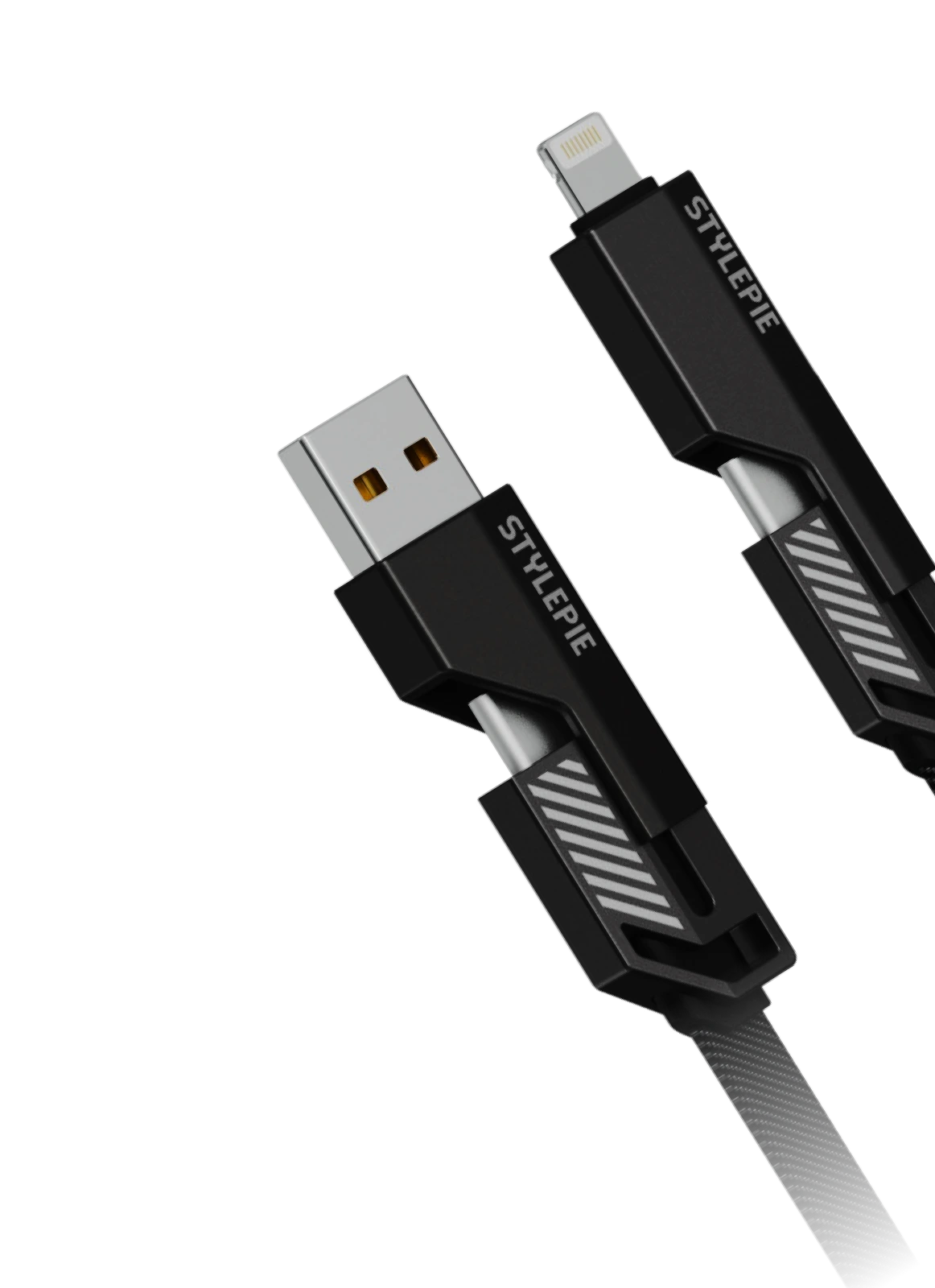
USB Liter is a custom USB /Lightning hardware cable designed for supported Apple devices.
Download firmware (latest)



© 2026 iRemex. All rights reserved.